

PANALOKO App Download helps members install our casino application on their mobile devices for convenient account access and online gaming entertainment. At PANALOKO, we provide separate installation instructions for Android and iPhone, covering downloads, app permissions, and Home Screen shortcuts. Players in the Philippines can follow this mobile casino app guide to choose a suitable installation method, avoid common errors, and protect their account information throughout the process.
How to Complete PANALOKO App Download on Android
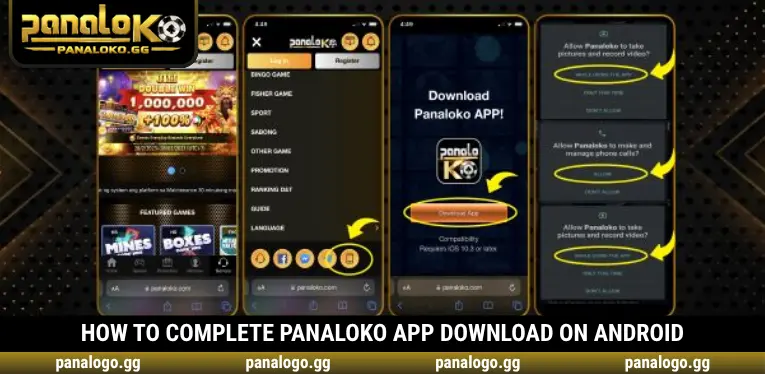
To complete PANALOKO App Download on Android, members should visit our website and access the application download feature through the navigation menu. We provide four steps, from opening the menu and selecting the phone icon to installing the application and reviewing the necessary permissions.
Step 1 – Visit the Website and Open the Menu
Open your preferred browser on an Android phone and visit the official PANALOKO website. Once the homepage appears, tap the three-line Menu icon at the top of the screen to display the navigation options. Before proceeding, verify the website address to avoid downloading applications from unfamiliar or potentially fraudulent sources.
Step 2 – Select the Phone Symbol
Inside the navigation menu, locate the Phone Symbol displayed among the available functions. Tap this icon to access the Android application download screen. PANALOKO provides the Download App feature in this section so members can begin the installation process directly from the website.
Step 3 – Click Download App to Install
When the Download Panaloko APP screen appears, tap Download App to begin downloading the installation file. Once the download finishes, open the file and follow the installation instructions displayed by Android. Before installing, review the application name, download source, and any security warnings presented by your device.
Step 4 – Log In and Select Allow
After installation, open the PANALOKO application and enter your registered account credentials. If Android requests access permissions, review their purpose before selecting Allow or While Using the App for the necessary functions. Avoid granting unrelated permissions that are not required for your intended activities.
How to Download PANALOKO App on iPhone and iOS
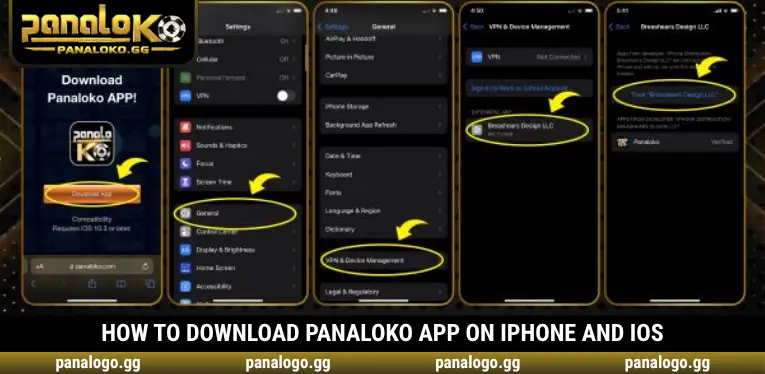
The PANALOKO App Download process on iPhone involves additional installation and developer certificate management procedures. We provide five steps, beginning with Download App and continuing through the VPN & Device Management settings, where users can review the developer profile before granting trust permissions.
Step 1 – Select Download App on the Website
Visit the PANALOKO application download section on your iPhone and select Download App as indicated on the page. Your device may display a confirmation message before continuing with installation. Make sure the download page belongs to a verified source before proceeding with any application management settings.
Step 2 – Open Settings and Select General
After completing the initial download, open the Settings application on your iPhone and locate General. This section contains system configuration options and device management settings. Members should access the appropriate menu to continue checking the installed application profile according to the PANALOKO installation instructions.
Step 3 – Open VPN & Device Management
Under General, select VPN & Device Management to view available configuration profiles and managed developer certificates. The exact location or wording may vary depending on the installed iOS version. Review the displayed information carefully before modifying any settings related to application trust.
Step 4 – Select Breashers Design LLC
Our PANALOKO installation guide displays a developer profile named Breashers Design LLC under VPN & Device Management. Locate and select this profile to review its certificate details. Before continuing, verify that the profile belongs to a developer officially authorized to distribute the application.
Step 5 – Tap Trust Breashers Design LLC
According to the illustrated installation instructions, the final action is to select Trust Breashers Design LLC to authorize the developer profile. Only proceed after verifying the certificate’s authenticity and its connection to the authorized app distributor. If the developer information is unclear or your device displays suspicious warnings, stop the installation and access our website through Safari instead.
Add PANALOKO to Your iPhone Home Screen
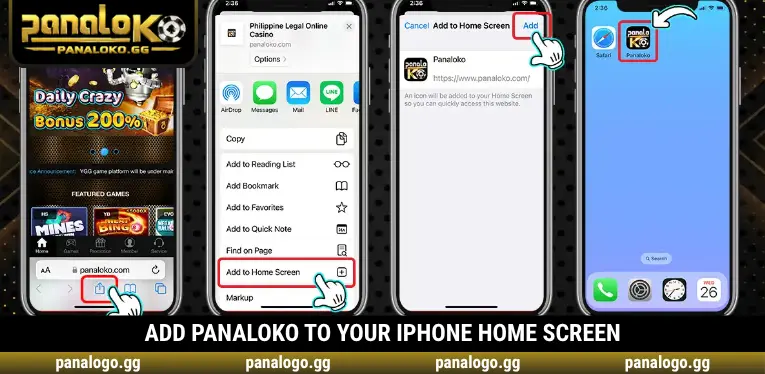
In addition to application installation, PANALOKO provides instructions for adding our website to the iPhone Home Screen using Safari. This method creates a convenient shortcut without requiring a separately installed application. Members can open the website directly from their phone’s Home Screen, while the available functions continue to depend on internet connectivity and browser support.
To begin, open our website in Safari and tap the Share icon in the browser toolbar. Next, select Add to Home Screen, review the PANALOKO name and icon, and tap Add to complete the process. Once you return to your Home Screen, the new shortcut should appear. Unlike PANALOKO App Download, this method does not require installing software through a separate developer certificate.
Benefits of Using PANALOKO on Your Mobile Phone
Completing PANALOKO App Download gives members another way to access online casino services from their mobile devices. We focus on convenient account access, gaming category navigation, and account management while encouraging players in the Philippines to protect their personal information whenever they use a smartphone.
- Convenient Account Access: Members can launch the platform directly from an icon on their phones instead of searching for the website each time. A suitable internet connection is still required to access online services.
- Easy Game Navigation: Gaming categories are organized for mobile viewing, allowing users to find entertainment based on their preferences. Members can review game details and participation requirements before playing.
- Personal Information Management: Users can access supported account functions through the mobile interface. This makes it more convenient to review profile information and relevant account details.
- Transaction History Monitoring: Available account management features allow members to check their transaction records. Regular reviews can help identify discrepancies and support timely assistance requests.
- Flexible Access Options: Android users can follow the application download process, while iPhone users can also create a Home Screen shortcut. Members can choose the method that best matches their devices and security preferences.
Common App Download and Installation Errors
During PANALOKO App Download, members may encounter difficulties caused by unstable internet connections, insufficient storage, or operating system compatibility problems. PANALOKO recommends identifying the displayed error before repeating an installation attempt. The following solutions address common technical issues without requiring users to bypass important device security protections.
| Common Problem | Detailed Solution |
| Unable to open the download page | Check Wi-Fi or mobile data, reload the website, and try another browser if the problem continues |
| Download App option is missing | Open the navigation menu, select the Phone Symbol, and check the application download section again |
| Android download does not finish | Check available storage, internet stability, and download progress before attempting another download |
| Application cannot be installed | Review Android compatibility, remaining storage, and system warnings without disabling security protections |
| iPhone application does not open | Check VPN & Device Management and verify the developer certificate before considering trust permissions |
| Home Screen shortcut is missing | Open the website in Safari, select Share → Add to Home Screen → Add, and check the Home Screen again |
Essential Security Tips Before Downloading PANALOKO App
Before completing PANALOKO App Download, we encourage members to verify the download source, application permissions, and developer information. Basic security precautions can reduce the risk of installing counterfeit software or exposing account credentials. Players should be especially cautious when receiving installation files through messages or unfamiliar websites.
- Verify the Download Source: Only use the application download section confirmed as part of our official platform. Avoid installing files distributed through suspicious messages, unknown accounts, or unverified websites.
- Check Operating System Compatibility: Review Android or iOS requirements before installing the application. Devices that do not meet the technical specifications may fail to install or operate the software correctly.
- Manage Application Permissions: Grant only the permissions necessary for the functions you intend to use. Members can review and modify application access through their phone’s settings.
- Protect Login Credentials: Never share passwords or one-time verification codes with anyone. Avoid saving account information on shared devices or phones without appropriate screen-lock protection.
- Be Careful With iOS Certificates: Do not select Trust until the developer profile has been verified. If the certificate appears unreliable, use the website rather than proceeding with installation.
Conclusion
PANALOKO App Download provides instructions for installing our application on Android and iPhone, along with adding our website to the iOS Home Screen through Safari. At PANALOKO, we help members understand installation steps, review application permissions, and protect their account information. Players should verify download sources, developer certificates, and device compatibility before proceeding. Open our casino app download section and choose a suitable, secure installation method.
FAQs about PANALOKO App Download
These questions address common concerns about downloading and using the application on mobile devices. The appropriate solution may depend on your operating system version, device settings, and installation status.
Is the PANALOKO App free to download?
The installation instructions do not indicate a download fee. However, your mobile network provider may charge for internet or mobile data usage.
Can I use my website account to log in to the app?
Yes, provided the application uses the same account system and is officially distributed. Verify the application before entering your login credentials.
Does the PANALOKO App need regular updates?
Check for official updates when a new compatible version becomes available. Only install updates from verified sources to reduce security risks.
Will uninstalling the app delete my account balance?
Normally, no. Account balances are generally maintained on the platform’s servers rather than stored only on your device. Check your account information before uninstalling.
Can I use the app with a weak internet connection?
The app may open while your device remains connected, but online features can become slow or interrupted. A stable connection is recommended for reliable access.

PANALOKO Team is the in-house content team at panalpko.gg, covering online casino games, sports betting, online sabong, and player guides for the Philippines market. All articles are reviewed by Founder & CEO Regine Velasquez before publication.